
Vlad Baturin
Founder & CEO
BATURIN PUMPS & SYSTEMS
linkedin.com/in/baturincom
1. Signing In to BATURIN® CRM for the First Time
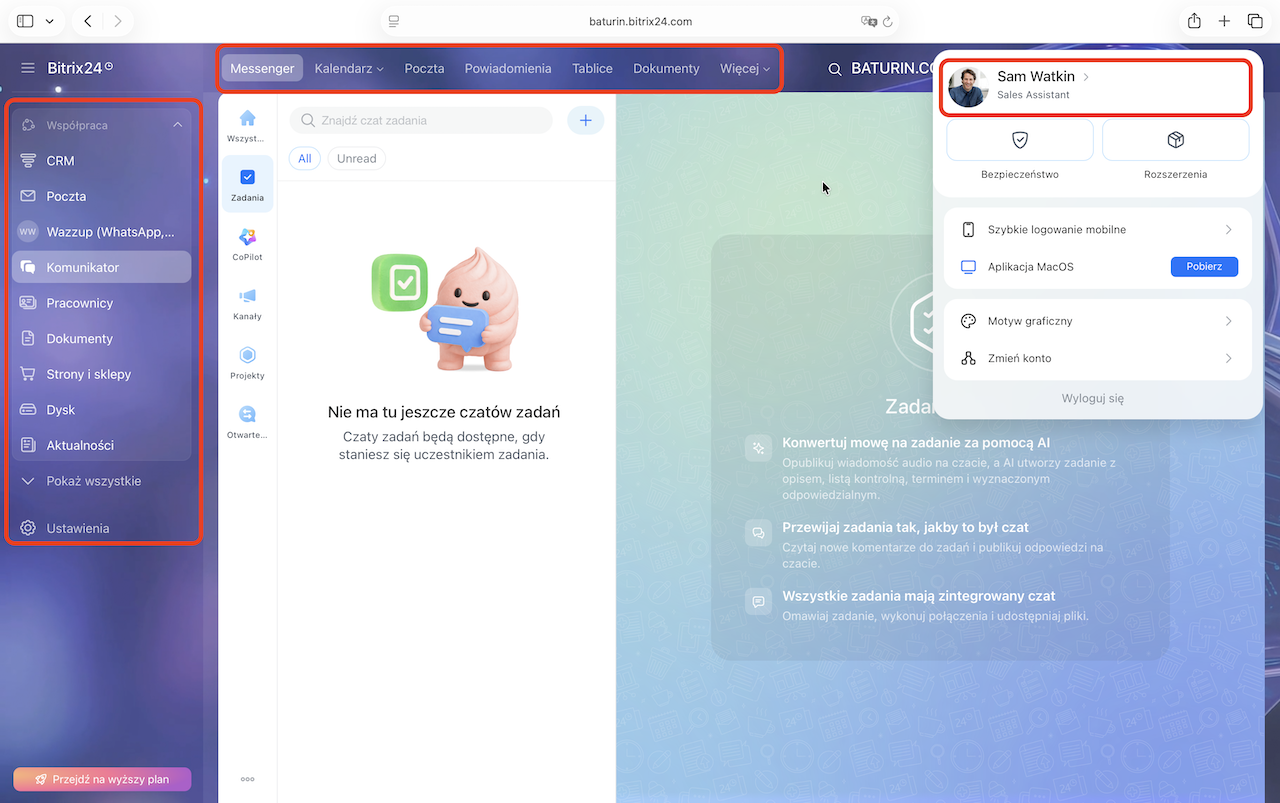
Once you are approved for the training course, you will receive an invitation email. When you accept the invitation and log in to the BATURIN CRM, you will see the start page in its default layout.
But before using the CRM, you have to customize it to match BATURIN’s corporate standards.
2. Changing the Language
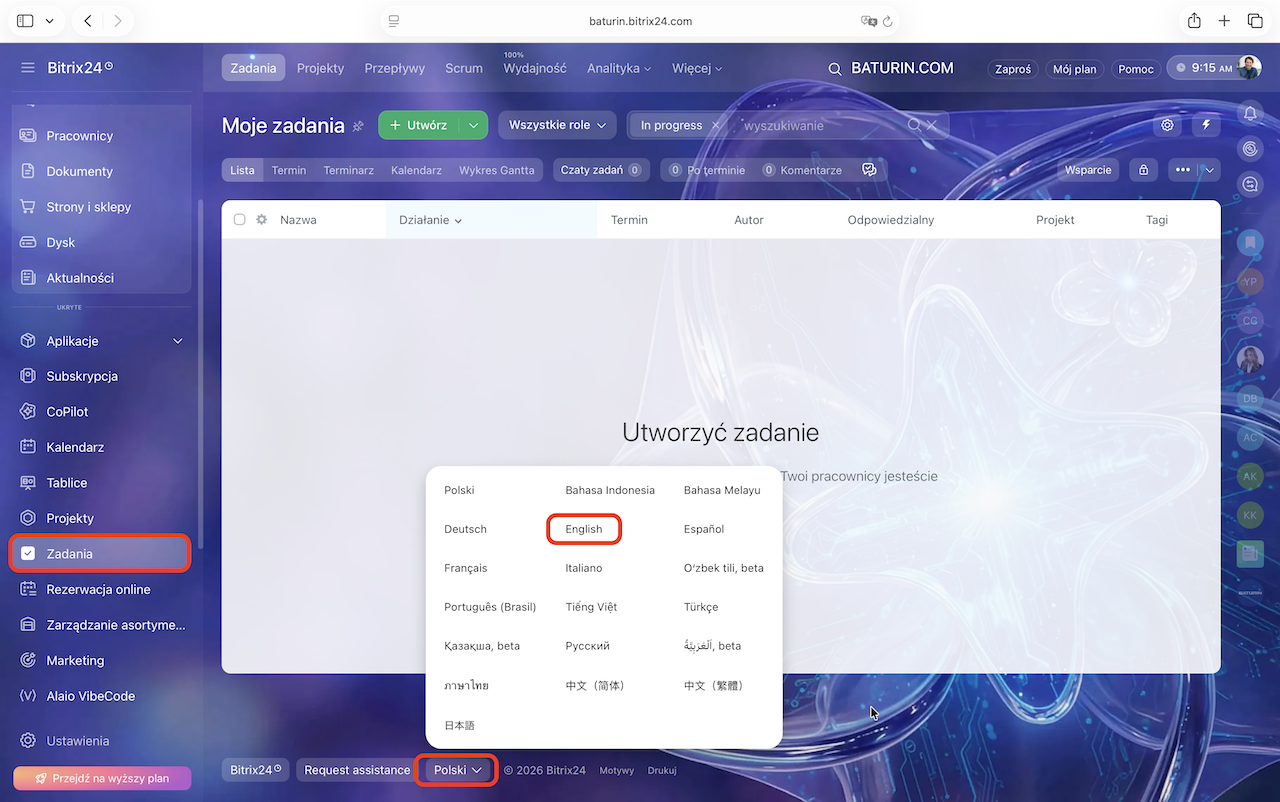
Depending on your system settings, the CRM may appear in a different language. If it does, switch it to English before you get started.
To change the language, click “TASK” in the left menu. Then open the language menu in the bottom-left corner of the screen and select “English.”
3. Customizing the Vertical Left Menu
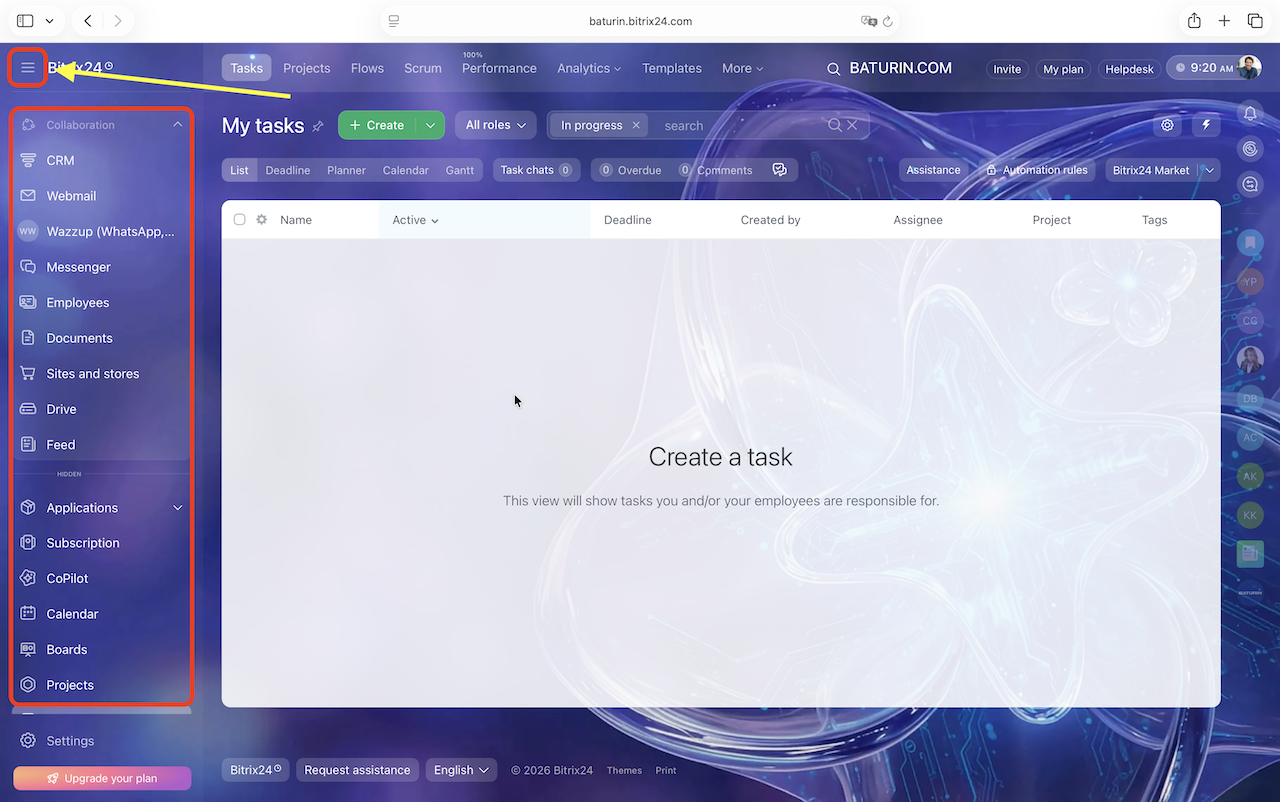
Once you have switched to English, start by customizing the vertical menu on the left side of the window.
To Collapse or Expand the Left Menu, click the Hamburger Icon in the upper-left corner.
4. Reordering the Vertical Menu Items
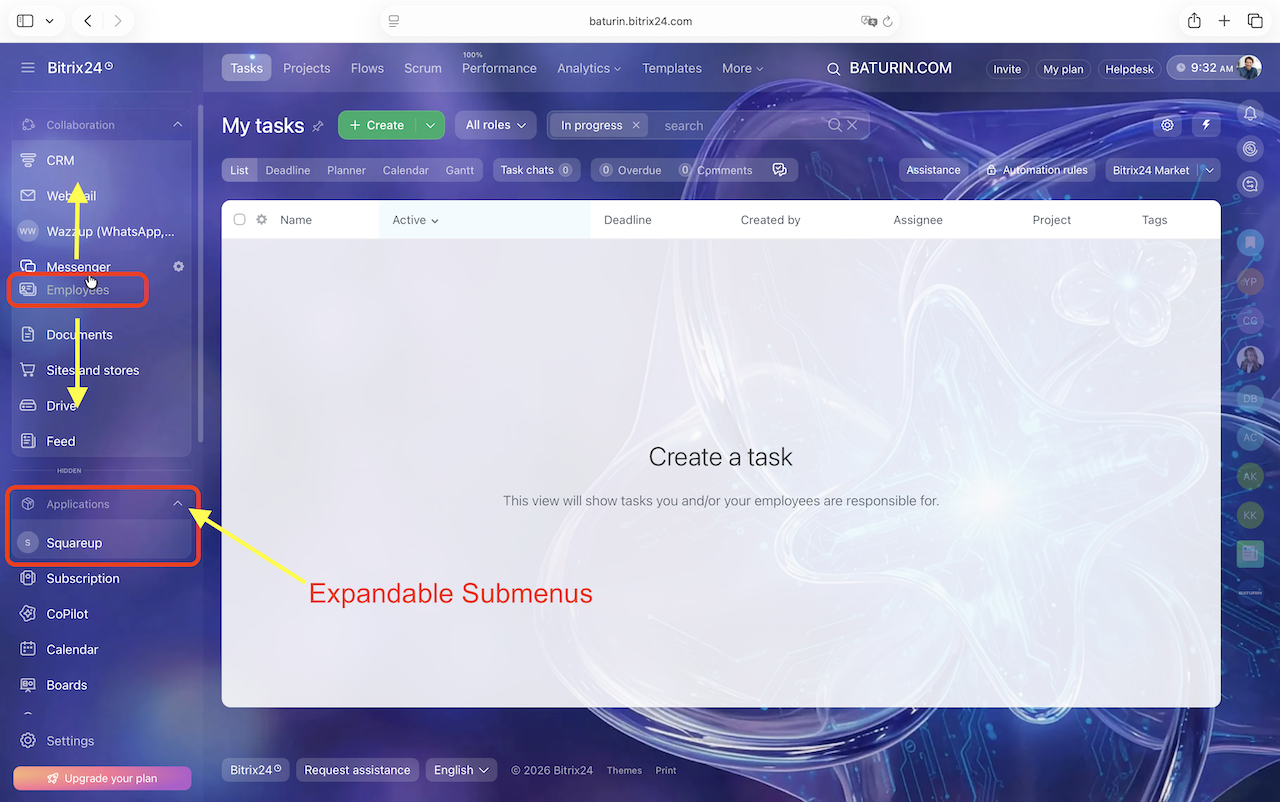
You can reorder the menu items by Dragging them Up or Down.
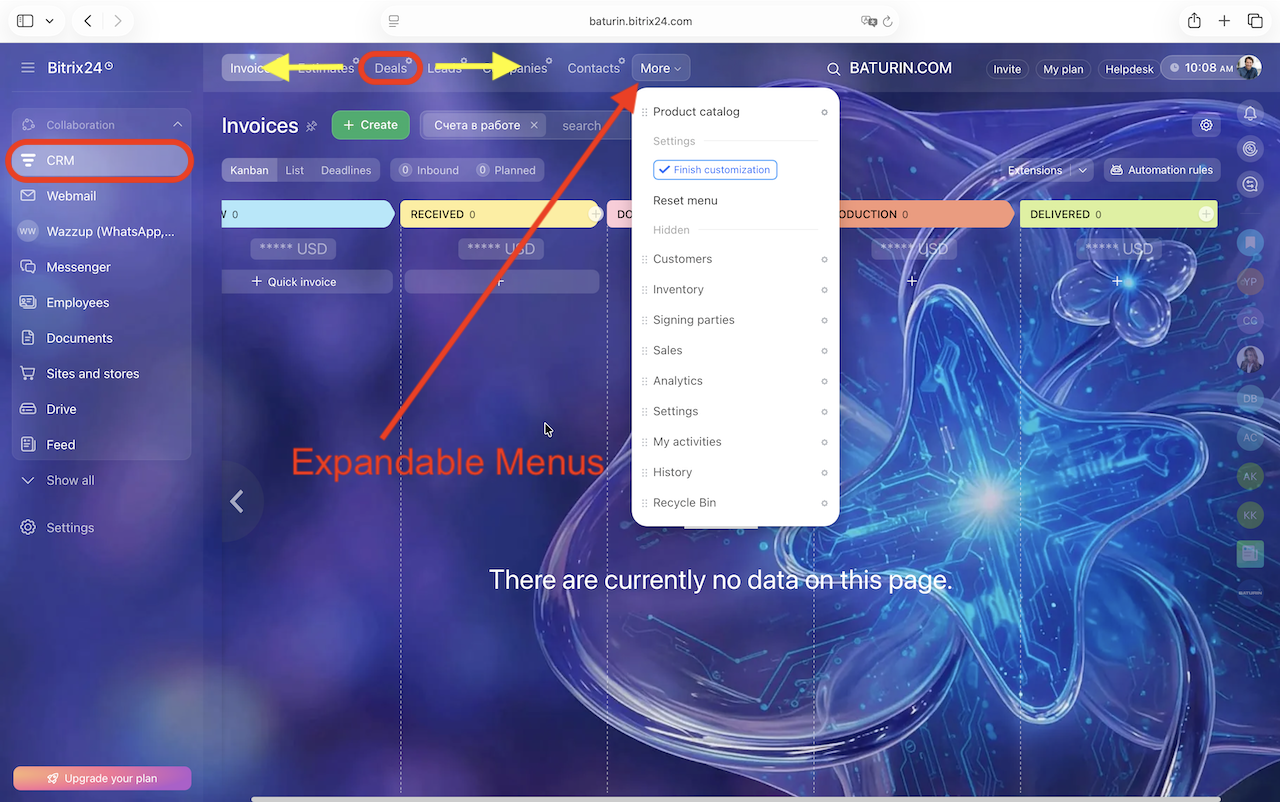
Be aware that some items may be listed under Expandable Submenus.
5. Hiding the Menu Item
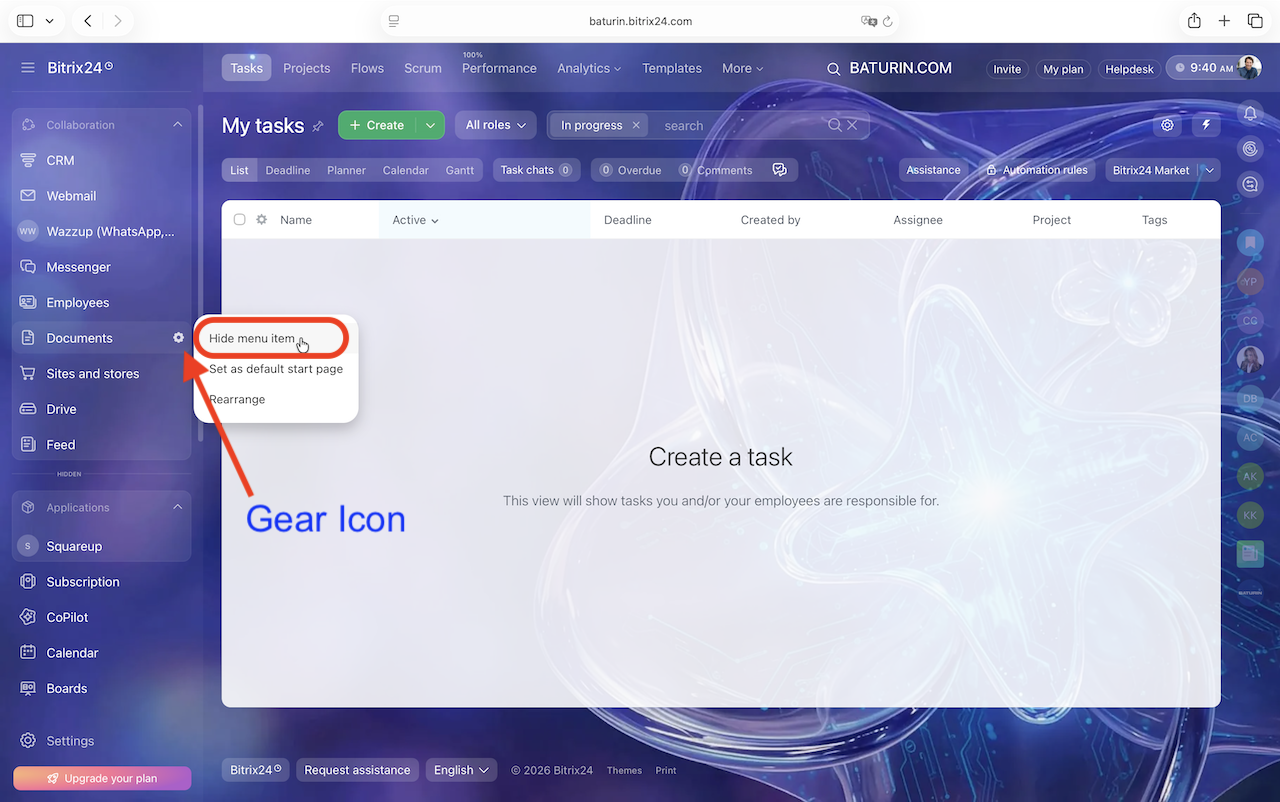
To hide an item you do not use, click its Gear Icon and select “Hide menu item.”
6. Organizing the Left Sidebar Menu
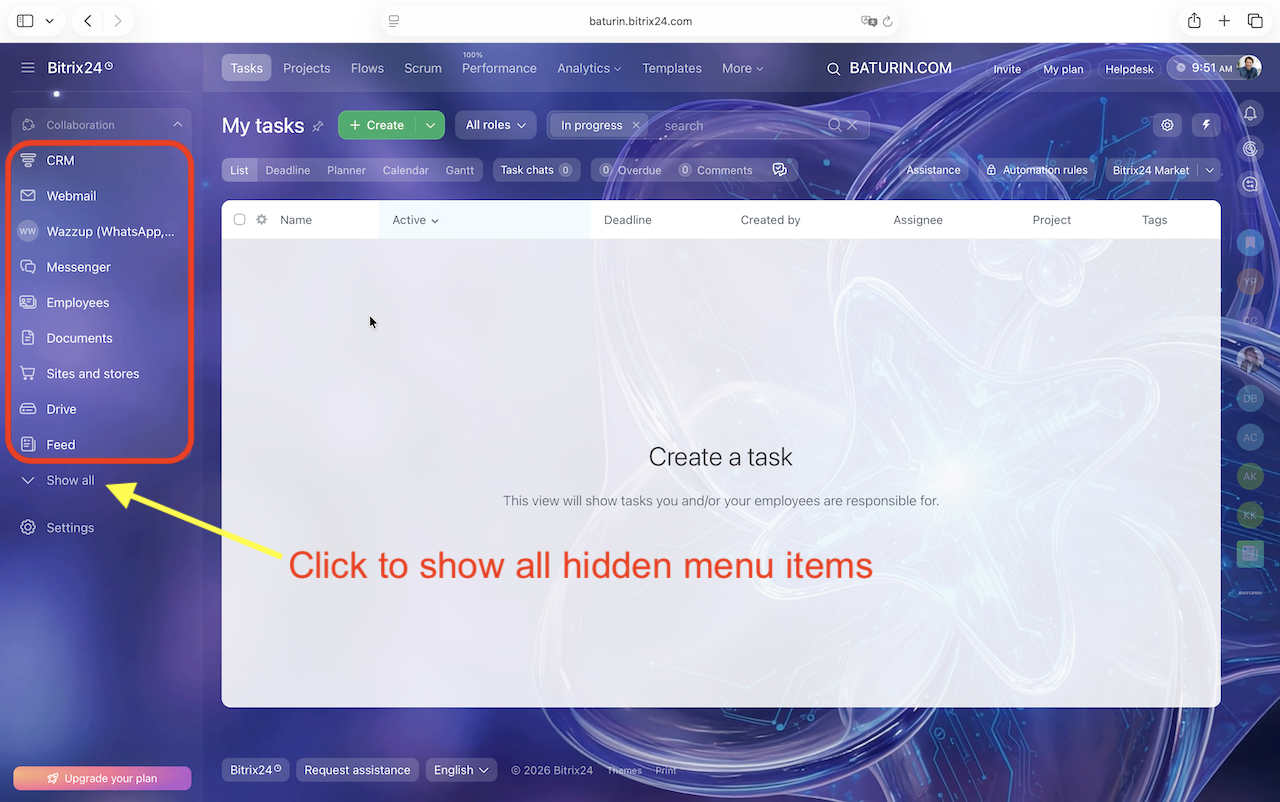
As a result, the items in the Left Menu have to be arranged in the following order:
7. Reordering the Horizontal Menu Items
After you finish with the vertical menu, click CRM on the left side and Look at the Horizontal Menu at the top of the screen. You can reorder the items in the top menu by Dragging them Left or Eight.
Keep in mind that some items are located in Expandable Submenus.
8. Organizing the Top Horizontal Menu
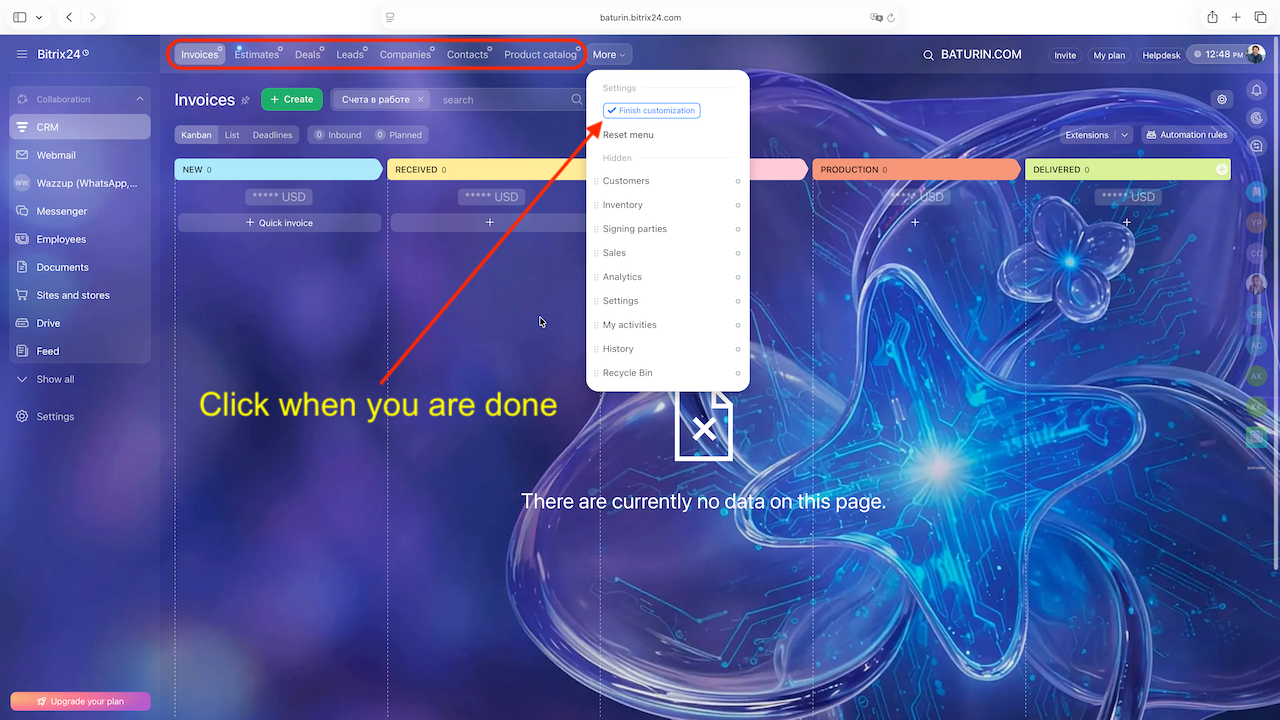
As a result, the items in the Top Menu have to be arranged in the following order:
9. Checking the result
When you’re finished, review the Left Sidebar and Top Horizontal Menu. Make any adjustments needed so that all menu items follow BATURIN’s standard layout.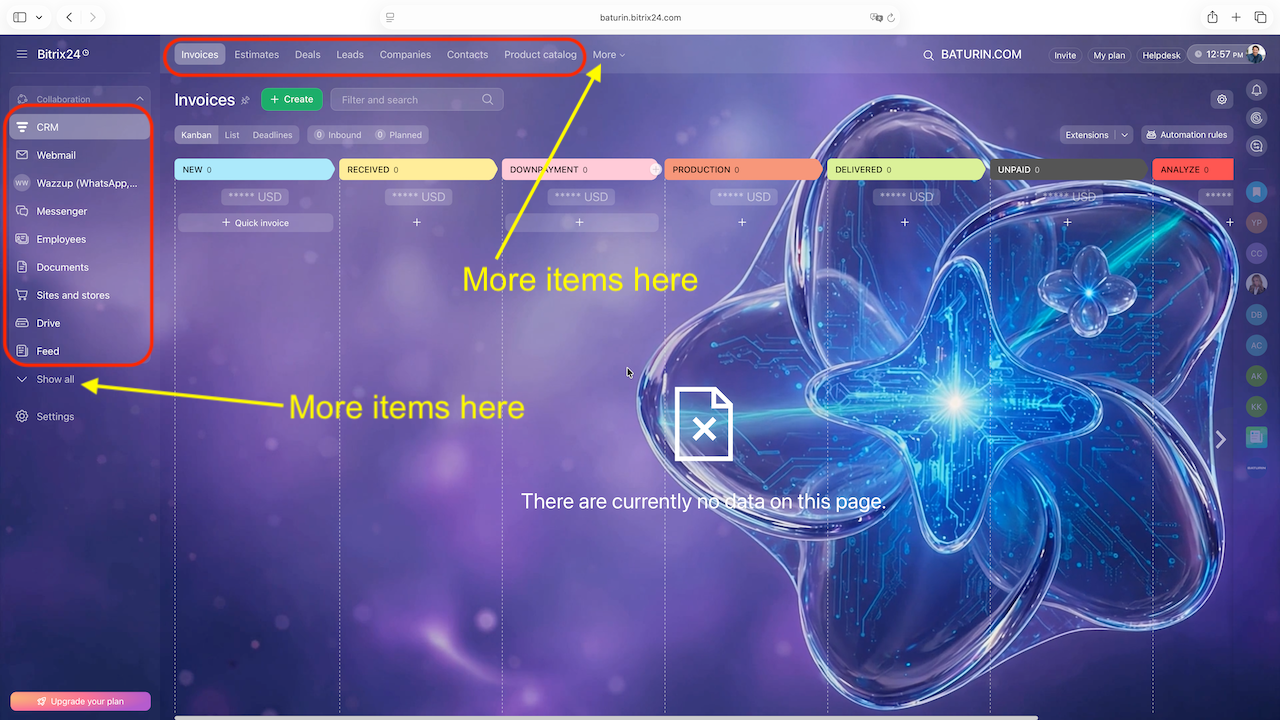
Founder & CEO
BATURIN PUMPS & SYSTEMS
linkedin.com/in/baturincom
BATURIN © 2026 All rights reserved.